
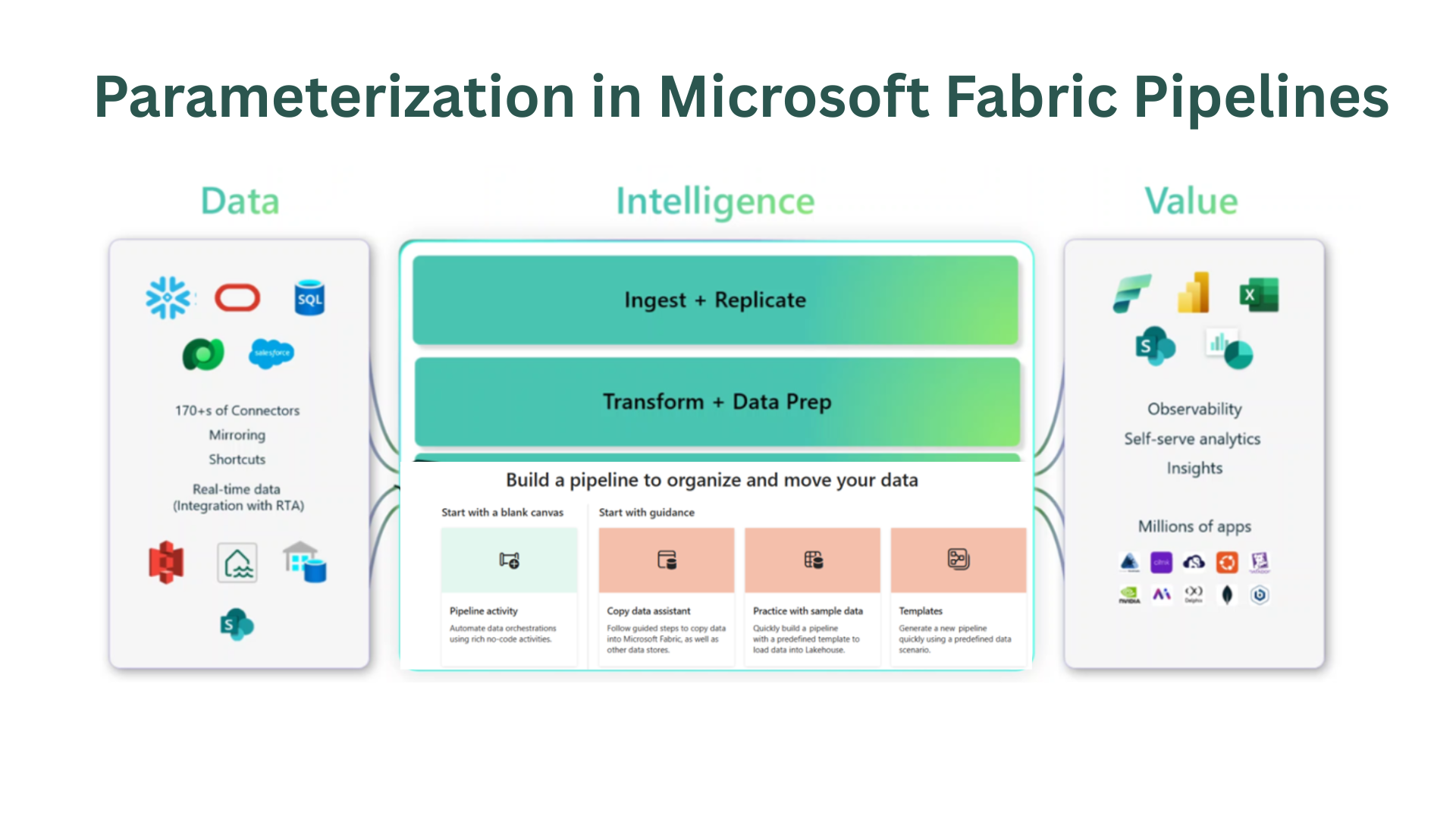

From Hardcoded Pipelines to Reusable Patterns in Microsoft Fabric
Most data pipelines start with one simple need: you need to move data from point A to point B. You choose the source, point to the destination, test the connection, and hit run. It works, and that first success feels great.
But the real test comes when your data footprint expands. Your team suddenly needs to ingest ten more files, dozens of new database tables, or varying API responses. If you copy-paste that initial pipeline for every new requirement, you quickly inherit a maintenance nightmare.
A hardcoded pipeline works for exactly one source. A reusable pipeline works for an entire pattern. That is why parameterization is a foundational discipline in Microsoft Fabric.
The Outcome You Want
By moving away from hardcoded values, your engineering team achieves several critical goals:
- Zero Duplication: You stop cloning identical pipelines for minor variations.
- Fewer Manual Edits: You minimize production risks by avoiding direct structural changes to code.
- Operational Clarity: Team members can understand your entire ingestion footprint simply by looking at configuration logic, rather than opening every single activity canvas to find hidden strings.
The core principle is simple: Keep your execution logic stable and move changing values into parameters or metadata.
1. Why Start With a Simple Copy?
We began our journey with a single file hosted on Amazon S3. The goal wasn’t to engineer a perfect, final enterprise architecture on day one; it was simply to prove the plumbing.
- Source file: products_raw.csv
- Destination: A Fabric Lakehouse landing folder
That initial run confirmed that S3 authentication worked, the network path to the Lakehouse was clear, and the data could land without corruption. Before you attempt to parameterize anything, always prove that the simplest, raw version of the pipeline functions properly.

2. Why Add a Pipeline Parameter?
Once the initial connection works, flexibility becomes your next bottleneck. A standard Copy Activity relies on a hardcoded file path, meaning every new file requires an engineer to edit the pipeline.
To break this limitation, we introduce a Pipeline Parameter named SourceFileName.

Instead of typing a static name into the source dataset settings, you reference this parameter dynamically. Now, the exact same Copy Activity adapts at runtime:
- Run 1: Receives products_raw.csv
- Run 2: Receives regions_raw.csv
The underlying pipeline logic remains untouched while the input value shifts dynamically. This approach is perfect for simple setups with one or two moving parts, but it still requires manual entry during a manual run. To process large batches automatically, we need to take the next step.
3. Why Use Metadata?
While parameters handle individual values well, a metadata table handles large scale elegantly. Instead of forcing an operator to manually type out file names, the pipeline reads a database table that acts as a control center.
For our Amazon S3 architecture, the metadata table tracks critical orchestration dimensions for every dataset:

This structure introduces a decoupled operating model. To board a brand-new file, your team simply inserts a new row into the table. To temporarily pause ingestion for an asset, you flip the IsActive flag to 0. You never touch the canvas.
4. Turning Metadata into Action: Lookup & ForEach
To make your pipeline act on this table, you need three core components working in harmony: the Lookup Activity, the ForEach Loop, and the systemic item() function.
Why Use Lookup?
The Lookup Activity queries your control table to fetch the work items for the current run. For example, it executes a quick SQL filter: SELECT * FROM ConfigTable WHERE IsActive = 1. The result is a clean array of tasks passed down the line.

Critical Design Rule: You must explicitly turn First Row Only OFF in the Lookup configuration. If left on, the pipeline will only read the very first record and ignore the rest of your batch.
Why Use ForEach & item()?
The ForEach Activity loops through the rows returned by your Lookup. This provides the ultimate scalability engine: you don't build ten separate copy activities; you build one inside the ForEach wrapper.

Inside the loop, the item() function serves as the pointer to the current row being processed.
- In loop iteration 1, item().SourceFileName evaluates to products_raw.csv.
- In loop iteration 2, it shifts seamlessly to regions_raw.csv.

5. Reusing the Pattern Across Fabric Workloads
The beautiful part of this architecture is that the metadata pattern isn't limited to moving flat files. It applies universally across Fabric workloads.
How the Notebook Pattern Uses the Same Idea
Data transformation notebooks shouldn't contain hardcoded file paths either. By configuring a dedicated parameter cell in your Fabric Notebook, you can pass target tables, paths, and write modes dynamically from the pipeline.

One single notebook can now process raw product files, clean regional datasets, and apply consistent Delta Lake transformations based purely on the values passed to it by item().
How the Web API Pattern Uses the Same Idea
For an enterprise global market intelligence landscape, managing API endpoints manually is inefficient. By leveraging metadata, you can store API configuration structures directly in a table:
- Base URL and endpoint templates
- Country codes, indicators, and target year ranges
- Destination landing names
One single Web activity can dynamically build an outbound request to grab GDP data for the United States on one loop, inflation data for Germany on the next, and population metrics for India right after.

Summary: The Reusable Architecture Blueprint
When you step back, every metadata-driven pipeline you build follows the exact same logical loop, regardless of what data type is inside it:
[Metadata Table] ──> [Lookup Activity] ──> [ForEach Loop] ──> [item() Core Activity]
What You Parameterize vs. What You Separate
To design clean patterns, you must draw a line between configurations and structural logic changes:
- Excellent Candidates for Metadata: File paths, folder names, target tables, API parameters, date parameters, and target write modes (append vs. overwrite).
- When to Build a New Pipeline: If the underlying business logic or data transformation rules change completely, do not write messy, convoluted conditional statements to force it into a single pipeline. Build a new pattern.
Parameterization isn't just an option inside Microsoft Fabric—it's a critical architectural discipline. Start simple by proving your raw connection works, layer on parameters as adjustments crop up, and transition to centralized metadata tables as your data operation scales. Build fewer pipelines; build smarter patterns.